RDP Gate

Open source · Windows server · Mac & Windows clients · no static IP

Port 3389 stays closed.
Until it's you.

RDP Gate keeps Remote Desktop invisible to the internet. Sign in from your own computer with its device key and a 6-digit code, and Windows Firewall opens for your IP address only. When you disconnect, it closes again. No static IP, no DNS name, no VPN.

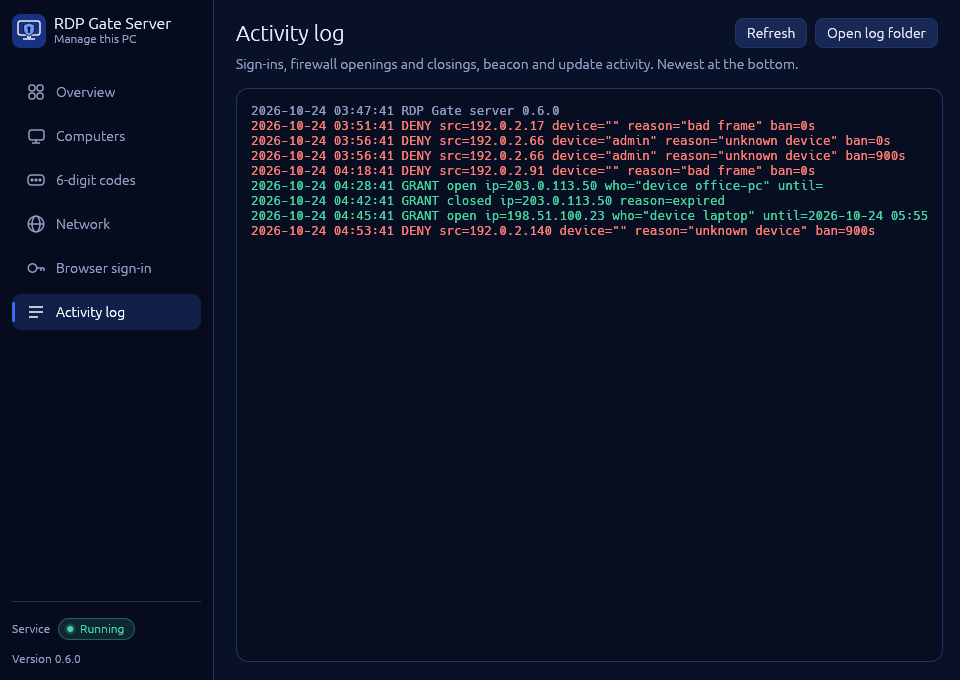
C:\ProgramData\RDPGate\logs\rdpgate.log
  1. DENY src=192.0.2.17 device="" reason="bad frame" ban=0s
  2. DENY src=192.0.2.66 device="admin" reason="unknown device" ban=0s
  3. DENY src=192.0.2.66 device="admin" reason="unknown device" ban=900s
  4. GRANT open ip=203.0.113.7 who="device macbook" until=07:52
  5. RDP connected ip=203.0.113.7
  6. GRANT closed ip=203.0.113.7 reason=expired

Scanners get refused, then ignored. The only allow rule ever created names one IP address.

What it looks like

Two small windows. One on the PC you connect to, one on each computer you connect from. Screenshots use sample data.

RDP Gate Server
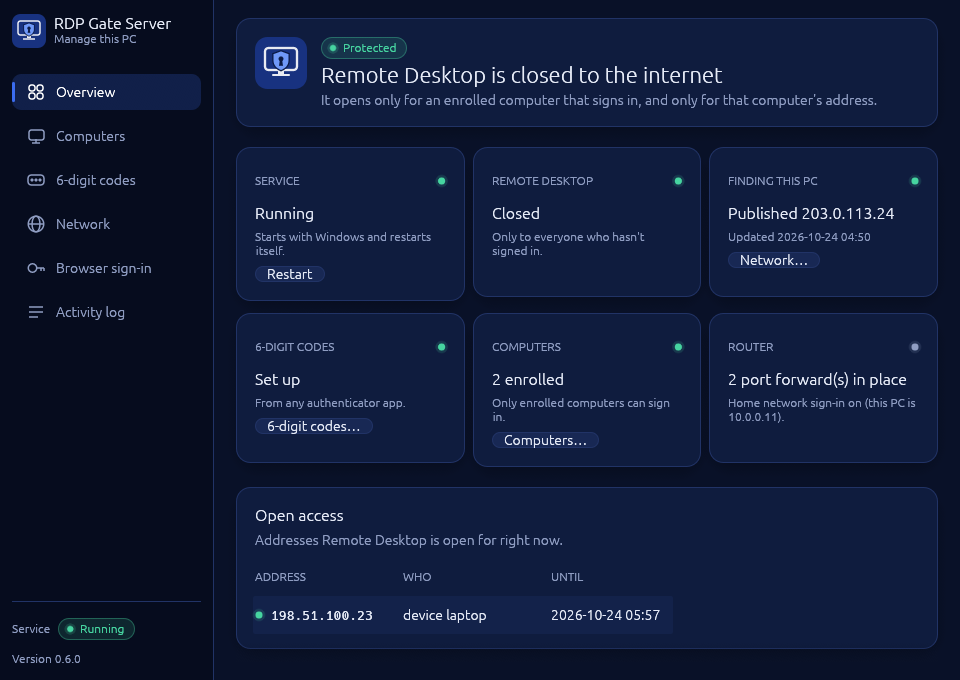
RDP Gate Server overview: a Protected banner, tiles for the service, Remote Desktop, the beacon, 6-digit codes, computers and router, and a table of open access
The server at a glance. Green means Remote Desktop is closed to everyone who hasn't signed in. Anything that would stop you getting in, or leave the port open, shows up here first.

The app on your Mac or PC: set up once, then sign in

  1. RDP Gate
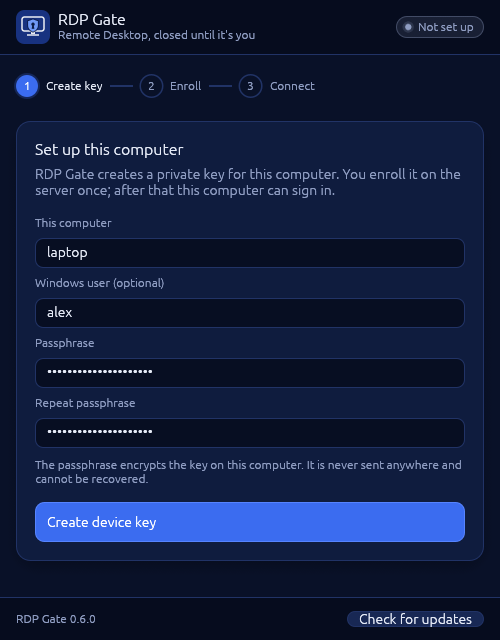
    Set up this computer: name, Windows user and passphrase fields, and a Create device key button

    Create a key. It's made on this computer and encrypted with your passphrase.

  2. RDP Gate
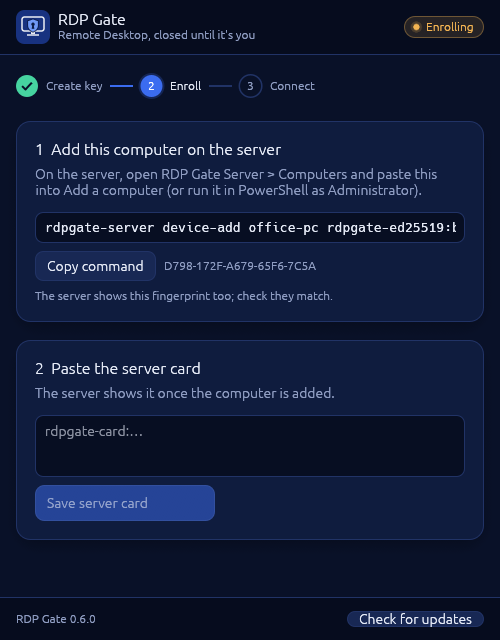
    Enroll this computer: a one-line command to copy to the server, its fingerprint, and a box for the server card

    Enroll it. Copy one line to the server and paste back the server card.

  3. RDP Gate
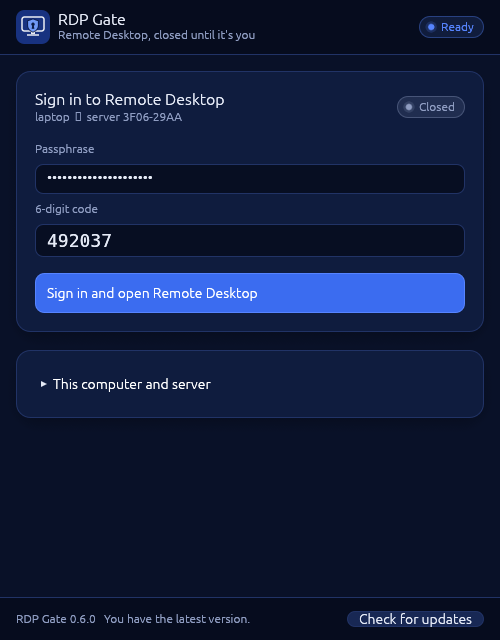
    Sign in to Remote Desktop: passphrase and 6-digit code fields and a Sign in and open Remote Desktop button

    Sign in. Your passphrase and a 6-digit code from your phone.

  4. RDP Gate
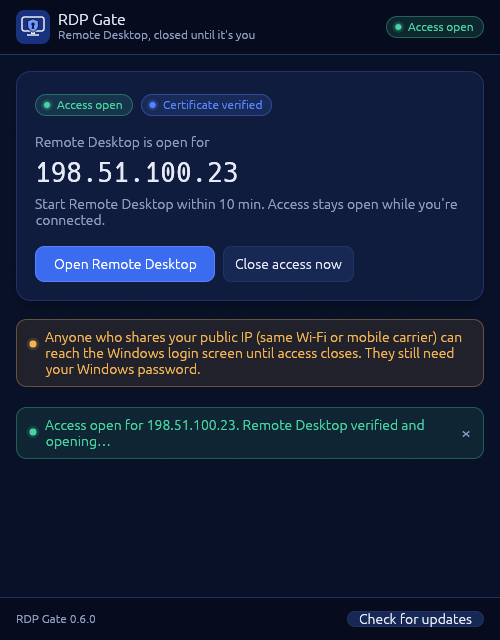
    Access open for one IP address, with the Remote Desktop certificate verified, and buttons to open Remote Desktop or close access

    You're in. Open for your IP only, with the Remote Desktop certificate checked.

Managing the server: no command line needed

Computers
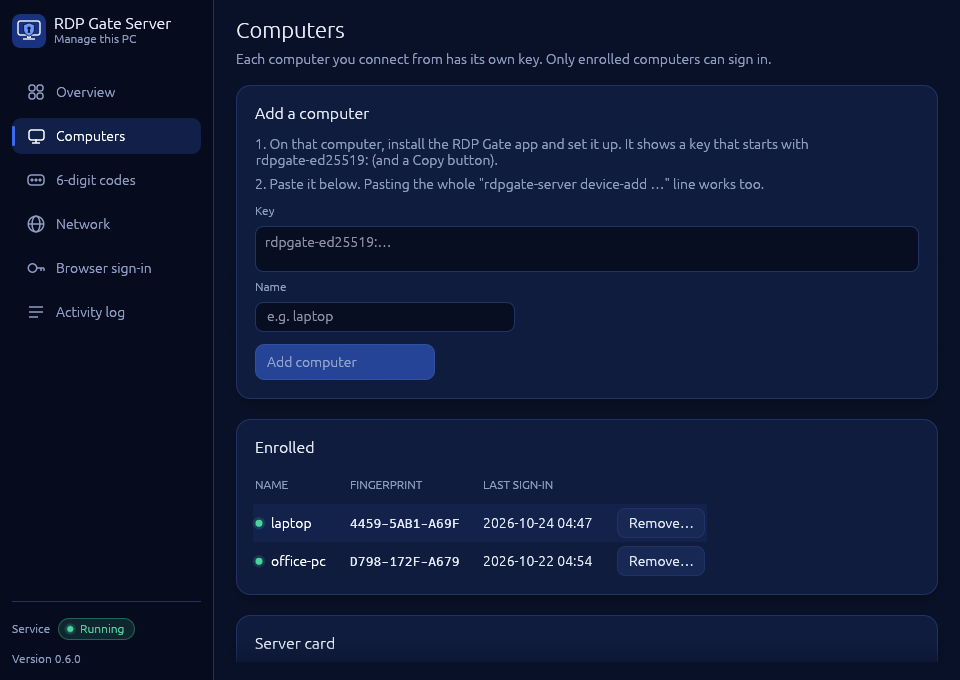
Computers page: paste a computer's key to add it, and a list of enrolled computers with fingerprints and last sign-in
Add a computer by pasting its key. Remove one and it can't sign in any more.
6-digit codes
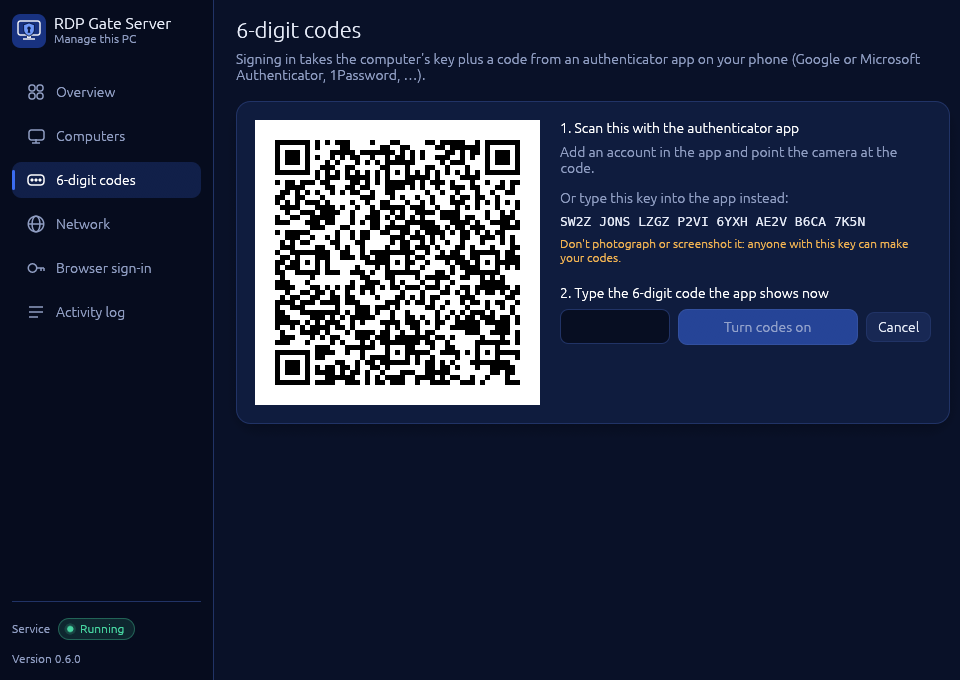
6-digit codes page with a QR code to scan into an authenticator app and a box for the first code
Scan the QR code with any authenticator app. The one shown is from a sample install.
Network
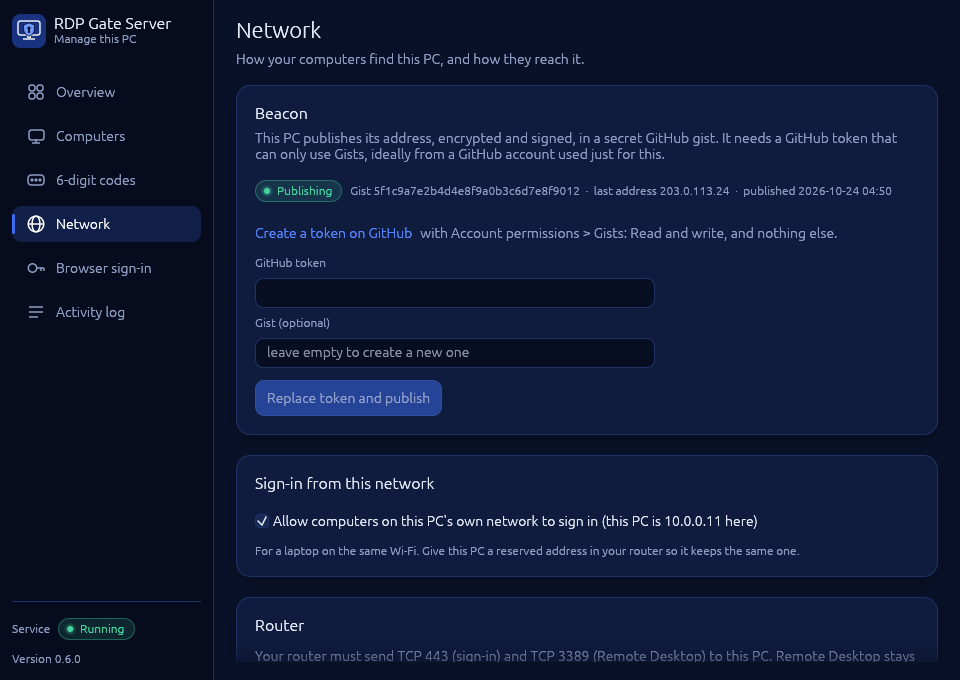
Network page: the encrypted beacon, sign-in from the home network, and router port forwarding
The encrypted beacon, home-network sign-in and router forwarding in one place.
Activity log
Activity log with refused connections in red and access openings in green
Refusals in red, openings in green. Scanners get refused, then ignored.

How it works

  1. Remote Desktop starts closed

    The installer sets Windows Firewall to block everything inbound and disables the built-in Remote Desktop rules. Only the RDP Gate sign-in service listens, on HTTPS.

  2. The app finds your PC and checks it's really yours

    It reads your PC's current address from an encrypted, signed beacon, connects directly, and makes the server prove its identity key before saying a word. Then it signs in with this computer's private key and your 6-digit code.

  3. The firewall opens for your IP only

    RDP Gate adds one allow rule for your current public address. The app checks the Remote Desktop certificate before opening it. Access stays while you're connected and closes a few minutes after you leave, or after 12 hours at most.

Two ways to sign in

From your Mac or PC

RDP Gate app or the rdpgate command

  • A private key created on this computer, encrypted with your passphrase (Argon2id + XChaCha20-Poly1305)
  • A 6-digit code from any authenticator app, each code usable once
  • Remote Desktop opens automatically when you're in

From a browser (optional)

With your own domain name

  • A passkey: Touch ID, Face ID, Windows Hello or a hardware key
  • The page shows which IP was opened and the certificate to expect
  • Browsers bind passkeys to a name, so this one needs a domain

What stands between the internet and your desktop

From the outside in. An attacker has to get through every one.

Hidden
Port 3389 is closed. The sign-in port only answers the RDP Gate protocol, limits each source, and goes silent for sources that keep failing.
Server proves itself
Your app pinned the server's identity key. A fake server, a hijacked address or a forged beacon is caught before the app sends anything.
Enrolled device
Every request is signed with an Ed25519 key you enrolled on the server, bound to that TLS 1.3 connection, so it can't be replayed or relayed.
Second factor
A one-time 6-digit code (10 wrong ones lock that computer), or a passkey that requires your fingerprint, face or PIN.
One public address, for a while
The allow rule names your public IP alone and expires on its own. Leftover rules are swept at every start.
Windows itself
Network Level Authentication, TLS, your Windows password and an account lockout policy, all switched on by the installer.

Download

Builds aren't Apple- or Microsoft-signed yet. On a Mac, right-click the app and choose Open the first time. On Windows, at the SmartScreen prompt choose More info, then Run anyway. Check downloads against SHA256SUMS.txt on the release page. Portable zips are there too.

Updates install themselves, and only if they're genuine

Each release carries a manifest of every file's checksum, signed with the RDP Gate release key. Every program has the matching public key built in.

Server
Checks once a day, installs, and restarts itself without dropping anyone signed in. Run rdpgate-server update to update now.
Desktop app
Checks at launch, installs, and offers Restart now. Turn it off under This computer and server.
Command line
Updates after a successful rdpgate connect, once a day. Run rdpgate update to update now.
Refused
Anything unsigned, a file that doesn't match its signed checksum, and anything older than what's installed, whoever serves it.

Setup, step by step

About 15 minutes. You need a Windows 10/11 Pro, Enterprise or Education PC (or Windows Server), access to your router, a GitHub account and an authenticator app on your phone.

  1. Part 1 · once

    On the Windows PC

    About 10 minutes

  2. Part 2 · per computer

    On each Mac or PC

    About 2 minutes each

  3. Part 3 · every time

    From anywhere

    A few seconds

  1. Make a GitHub token for the beacon

    Any browser

    Your PC has no fixed address, so it publishes its current one in a secret gist, encrypted and signed. Create a fine-grained token with one permission: Gists: Read and write.

    Use a GitHub account just for RDP Gate. A Gists token can read and change every gist on its account.

    New fine-grained token

    Token name

    rdpgate-beacon

    Account permissions

    GistsRead and write ▾
    Everything elseNo access

    Repository permissions

    AllNo access

    Generate token, then copy it

  2. Run the server Setup

    Windows PC

    Run RDP-Gate-Server-Setup.exe. The ticked defaults suit most people. A domain name is only needed for browser sign-in.

    Setup hardens Remote Desktop, closes it in Windows Firewall and starts the RDPGate service. Then RDP Gate Server opens: paste the token under Finish setting up.

    Installing over Remote Desktop? Setup keeps it reachable until your first sign-in through RDP Gate, so you aren't cut off.

    RDP Gate Server Setup
    • Browser sign-in with my domain optional
    • Forward ports on my router
    • Account lockout policy
    • Stop this PC sleeping
    • Show the service's status
    • Also open UDP
    The task page. Anything Setup changes is put back if you uninstall.
  3. Scan the QR code with your phone

    Windows PCPhone

    In RDP Gate Server, choose Set up… next to the 6-digit codes and a QR code appears. Scan it with any authenticator app (Google or Microsoft Authenticator, 1Password, Bitwarden…) and type the code it shows.

    To do it again later, open Start → RDP Gate Server → 6-digit codes.

    RDP Gate Server · 6-digit codes
    The 6-digit codes page with a sample QR code and a box for the first code
  4. The router: usually nothing to do

    Windows PC

    Setup forwards TCP 47443 and 3389 to this PC by itself (UPnP), and tells you if the router refuses or your ISP uses carrier-grade NAT. Forwarding by hand? Send both ports to this PC.

    Either way, give the PC a reserved address in the router. The computers you connect from need no open ports.

    The two ports on the way in The router forwards TCP 47443 and TCP 3389 to the Windows PC. Windows Firewall lets 47443 through to the RDP Gate sign-in service, and keeps 3389 shut until you sign in. Internet Router Windows PC forwards both (UPnP) TCP 47443 Sign-in TCP 3389 Remote Desktop Windows Firewall
    Port 3389 stays shut at the firewall. After you sign in, it opens for your IP address alone, then closes again.
  5. Install the app and create a key

    Mac or PC

    Windows: run RDP-Gate-Client-Setup.exe. No administrator rights needed.
    Mac: drag RDP Gate to Applications, right-click it and choose Open the first time, and install Microsoft's free Windows App.

    Then name this computer and choose a passphrase. It encrypts the key on this computer and can't be recovered, so keep it in your password manager.

    RDP Gate
    Set up this computer: name, Windows user and passphrase fields, and a Create device key button
  6. Enroll it: one line there, one line back

    Mac or PCWindows PC

    Choose Copy command in the app and paste it into RDP Gate Server → Computers (or PowerShell as Administrator). Check the fingerprints match. The server answers with a server card: paste that into the app. It tells the app where to find your PC and pins the server's identity key.

    RDP Gate · your Mac or PC
    Enroll this computer: a one-line command to copy to the server, its fingerprint, and a box for the server card
    RDP Gate Server · Computers
    Computers page of RDP Gate Server: paste a computer's key to add it, and a list of enrolled computers
  7. Sign in

    Mac or PCPhone

    Enter your passphrase and the 6-digit code, and choose Sign in and open Remote Desktop. The app finds your PC, checks it's really yours, opens the firewall for your IP, checks the Remote Desktop certificate and opens the session.

    Log in to Windows as usual. Access closes a few minutes after you disconnect.

    RDP Gate
    Sign in to Remote Desktop: passphrase and 6-digit code fields
    RDP Gate
    Access open for one IP address, with the Remote Desktop certificate verified

Want browser sign-in with a passkey as well? Give Setup a domain you own that points at your home IP, then run rdpgate-server passkey-enroll and open the link on your phone or Mac.

Read the full operation guide

Honest limitations

Roadmap

Next

  • Tunnel mode: Remote Desktop through the authenticated connection, with no port 3389 forwarding and no shared-IP exposure
  • Apple- and Microsoft-signed builds
  • Separate the internet-facing process from the part that edits the firewall

Later

  • Device keys held in the Secure Enclave or TPM
  • Sign-in notifications and approve-from-phone
  • Optional "passkey and code" mode, LAN allow-list
  • Beacon key rotation and more beacon stores (your own HTTPS, S3/R2)
  • Linux and macOS servers

Questions

Do I need a static IP address or a domain?

No. Your PC publishes its current address as an encrypted, signed beacon in a secret GitHub gist. The gist only ever holds ciphertext (GitHub, like any website, does see the IP address each update comes from), and nobody can forge a beacon without your server's key. A domain is only needed for the optional browser sign-in.

Why not just a VPN?

A VPN is a fine answer. RDP Gate is for people who want one small thing on the server, no always-on tunnel on every laptop, and a browser fallback with a passkey.

What happens if I lose my laptop?

Its key is useless without your passphrase and your second factor. Remove it anyway: rdpgate-server device-remove macbook takes effect immediately.

Does anything phone home?

No. The server asks two public "what is my IP" services and updates your own gist. There is no telemetry and no account with us.

Could a fake update take over my computers?

Not without the release key. The programs refuse updates without a valid signature and refuse to go back to older versions. A compromised download, a network attacker, or someone who can only edit the release page can't get code onto your machines.

What if someone points my PC's address somewhere else?

The app refuses to talk to any server that can't prove your server's pinned key, and refuses to open Remote Desktop if the RDP certificate doesn't match what your server vouched for. Worst case, you can't connect; you never connect to the wrong machine.